
USD onboarding guide
This guide provides step-by-step instructions for onboarding customers to create and use USD accounts through the Lorum platform.
Overview
Note: Before starting the onboarding make sure that the Customer is Approved/Auto-approved by Lorum first
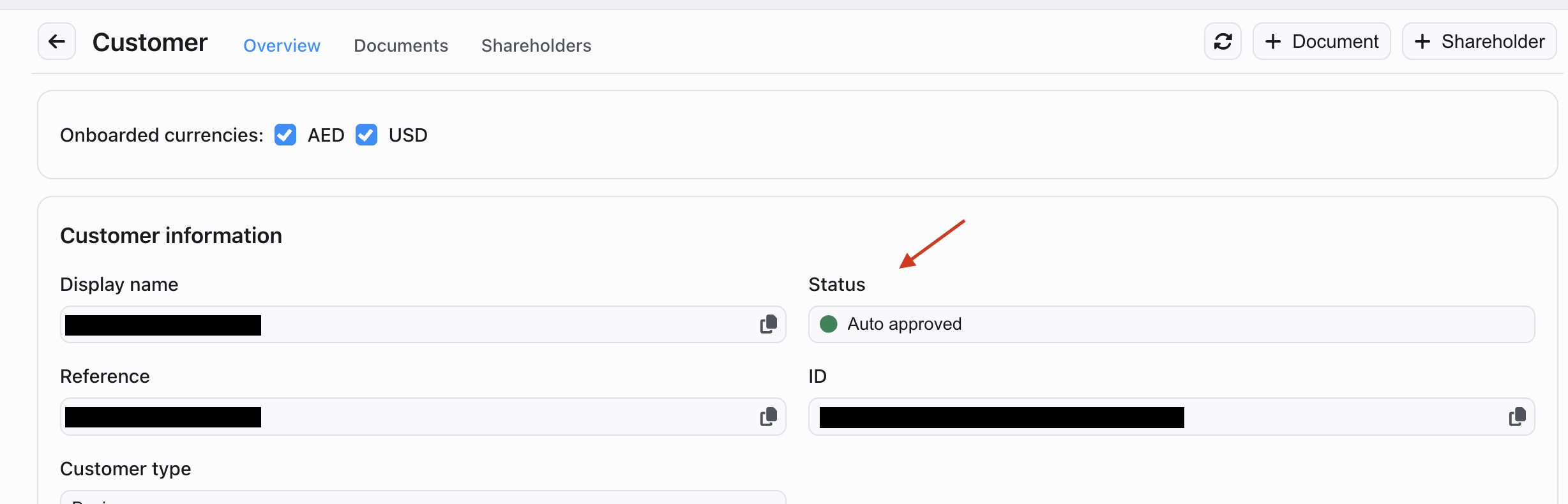
The USD account onboarding process differs based on customer type:
- Individual Customers: 5-step process
- Business Customers: 7-step process (requires at least one onboarded shareholder as individual customer)
Individual Customer Onboarding
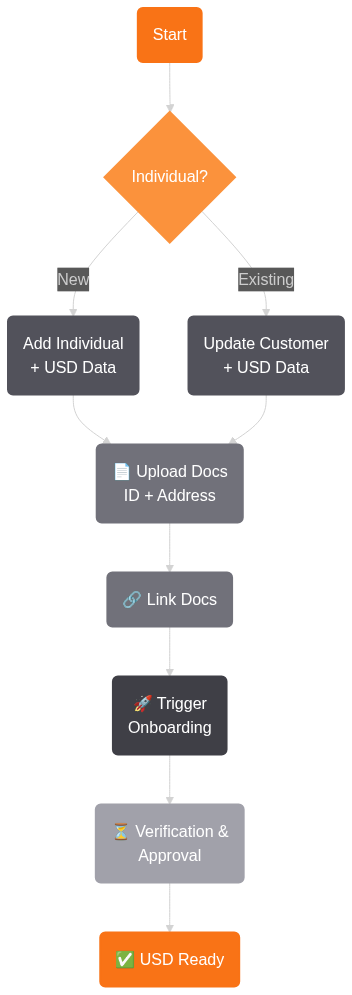
Step 1: Provide Currency-Specific Data
For New Customers
Create a new individual customer with USD-specific information using the Add Individual API:
Documentation: <https://docs.lorum.com/reference/add_individual>
Include all required fields along with USD-specific data in your request.
For Existing Customers
Update existing customer profiles with USD-specific data using the Update Customer API.
Documentation: <https://docs.lorum.com/reference/update_customer>
Step 2: Upload Required Documents
Documentation: <https://docs.lorum.com/reference/upload_document>
Upload the following documents using the Upload Document API:
1. Identity Verification Biometrics
- Document Type:
identity_verification_biometrics - Description: Biometric identity verification document
2. Proof of Address
Must be dated within the last 90 days. Acceptable documents include:
- Utility Bill
- Document Type:
proof_of_address
- Document Type:
- Bank Statement
- Document Type:
bank_statement
- Document Type:
- Government-Issued Document
- Document Type:
proof_of_address
- Document Type:
Step 3: Link Documents to Customer
Link the uploaded documents to the customer profile.
Documentation: <https://docs.lorum.com/reference/link_document>
Step 4: Trigger Onboarding Process
Once all documents are uploaded and linked, initiate the onboarding process using the Onboarding API.
Documentation: <https://docs.lorum.com/reference/onboard_customer>
Step 5: Verification & Approval
Wait for the verification process to complete. You'll receive notification once the USD onboarding is approved and ready for use.
Note: To receive onboarding status notifications, the organization admin must enable the Onboarding webhook category in in the Lorum portal, under Settings > App.
Business Customer Onboarding
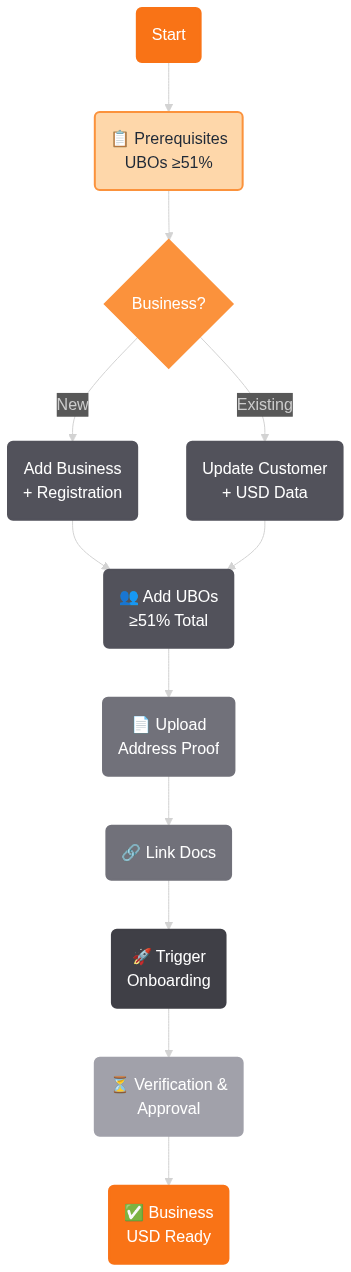
Prerequisites
You must identify the individual(s) who collectively hold 51% or more ownership in the business. This may be:
- A single individual UBO (Ultimate Beneficial Owner) with at least 51% ownership, OR
- Multiple individual UBOs whose combined ownership meets or exceeds 51%
All identified UBOs must be fully onboarded for USD (following the Individual Customer process above) before being added as shareholders.
Step 1: Provide Currency-Specific Data
For New Business Customers
Create a new business customer with USD-specific information using the Add Business API:
Documentation: <https://docs.lorum.com/reference/add_business>
Important: Registration date is required for USD onboarding.
For Existing Business Customers
Update existing business profiles with USD-specific data using the Update Customer API.
Documentation: <https://docs.lorum.com/reference/update_customer>
Step 2: Add USD-Onboarded Shareholder(s)
Add the USD-onboarded individual(s) as shareholder(s) to meet the ownership requirement:
Documentation: <https://docs.lorum.com/reference/add_shareholder_v2>
Requirements:
- All shareholders must be fully onboarded for USD as individuals
- The total ownership of USD-onboarded shareholders must be 51% or greater
- You may add:
- Single shareholder: One individual with ≥51% ownership
- Multiple shareholders: Multiple individuals whose combined ownership ≥51%
Example Scenarios:
- One shareholder with 60% ownership ✓
- Two shareholders with 30% + 25% ownership (55% total) ✓
- Three shareholders with 20% + 20% + 15% ownership (55% total) ✓
Step 3: Upload Mandatory Documents For All Business Customers
1. Proof of Address
Documentation: <https://docs.lorum.com/reference/upload_document>
Upload proof of address for the business location. Document must be dated within the last 90 days.
Acceptable documents include:
- Utility Bill
- Document Type:
proof_of_address
- Document Type:
- Bank Statement
- Document Type:
bank_statement
- Document Type:
- Government-Issued Document
- Document Type:
proof_of_address
- Document Type:
2. Articles of Association
A legal document that sets out a company’s governance rules, shareholder rights, and internal operating structure.
3. Financial Statements
Official records of a company’s financial performance, typically including balance sheet, income statement, and cash flow statement.
4. Incorporation Certificate
An official certificate issued by the company’s registry confirming the legal formation of the business.
5. Source of funds
Documentation showing the legitimate origin of the funds used by the business, such as bank statements or investment records.
Step 4: Upload Mandatory Documents For All Financial Institutions
Businesses with the following industry codes are classed as financial institutions and will require addition documents to be uploaded.
- 423940 - Jewelry, Watch, Precious Stone, and Precious Metal Merchant Wholesalers
- 425120 - Wholesale Trade Agents and Brokers
- 441110 - New Car Dealers
- 441120 - Used Car Dealers
- 522190 - Other Depository Credit Intermediation
- 522220 - Sales Financing
- 522291 - Consumer Lending
- 522292 - Real Estate Credit
- 522293 - International Trade Financing
- 522320 - Financial Transactions Processing, Reserve, and Clearinghouse Activities
- 522390 - Other Credit Intermediation
- 523120 - Securities Brokerage
- 523130 - Commodity Contracts Dealing
- 523210 - Securities and Commodity Exchanges
- 523920 - Portfolio Management
- 523930 - Investment Advice
- 523999 - Miscellaneous Financial Investment Activities
- 524113 - Direct Life Insurance Carriers
- 524210 - Insurance Agencies and Brokerages
- 525120 - Other Insurance Funds
- 525910 - Open-End Investment Funds
- 525990 - Other Financial Vehicles
- 531210 - Offices of Real Estate Agents and Brokers
- 533110 - Lessors of Nonfinancial Intangible Assets (except Copyrighted Works)
- 541214 - Payroll Services
- 551111 - Offices of Bank Holding Companies
- 561450 - Credit Bureaus
The following additional documents are required to be uploaded:
1. AML CFT Sanctions Policy
A formal policy outlining the company’s procedures for preventing money laundering, terrorist financing, and sanctions breaches.
2. AML CFT Sanctions Audit
An independent audit report assessing the effectiveness of the company’s AML, CFT, and sanctions controls.
3. Regulatory License
An official license issued by the relevant regulator authorising the company to conduct regulated financial activities.
4. Compliance Officer Resume
A résumé or CV demonstrating the qualifications and experience of the company’s appointed Compliance Officer.
5. Share Certificate
An official certificate issued by the company showing ownership of its shares and the registered shareholders.
6. Wolfsberg Questionnaire
A standard due-diligence questionnaire covering the company’s financial crime controls, based on the Wolfsberg Group framework.
7. Enhanced Due Diligence (EDD) Form
A template form with questions regarding the intended use of the account. Needs to be signed. Required from 31st July 2026. The form is available here. Questions that require an existing account (those about identifier and opening date) can be answered with: "It will be a new account".
Step 5: Link Document to Customer
Link the uploaded business proof of address to the business customer profile.
Documentation: <https://docs.lorum.com/reference/link_document>
Step 6: Trigger Onboarding Process
Once all requirements are met, initiate the business onboarding process using the Onboarding API.
Documentation: <https://docs.lorum.com/reference/onboard_customer>
Step 7: Verification & Approval
Wait for the verification process to complete. You'll receive notification once the business USD onboarding is approved and ready for use.
Note: To receive onboarding status notifications, the organization admin must enable the Onboarding webhook category in in the Lorum portal, under Settings > App.
Important Notes
Document Requirements
- All proof of address documents must be dated within the last 90 days
- Documents must be clear, legible, and show complete information
- Accepted formats: PDF, JPEG/JPG, PNG
- File size limit is 9.5 MB
Support
For additional assistance or questions about the USD onboarding process:
- Consult the full API documentation at <https://docs.lorum.com>
- Contact technical support for integration issues
Updated about 2 months ago