
Understanding Lorum
Learn how organisations, customers, accounts, and transactions relate to each other and form the foundation of every Lorum integration.
Lorum is organised around four core entities:
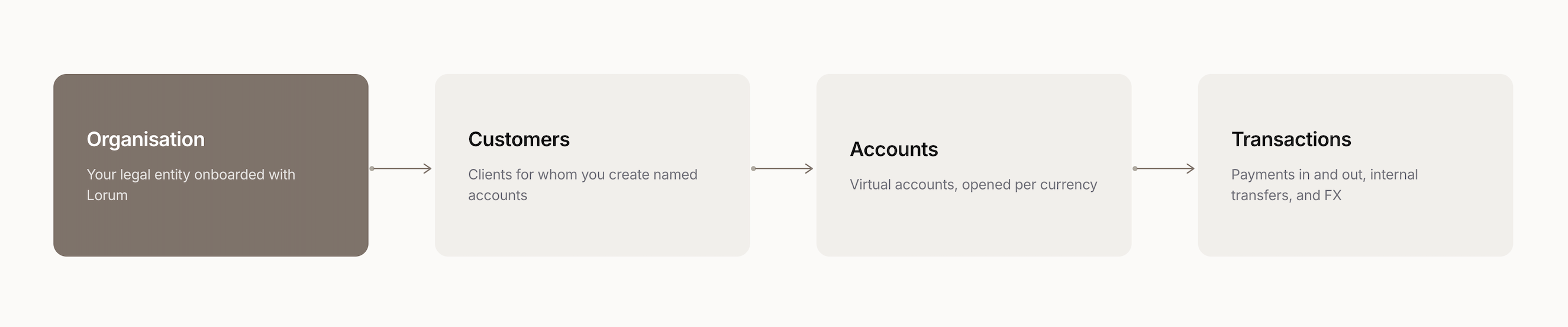
Your organisation is the top-level entity. Customers are created within your organisation, accounts are opened for those customers, and transactions represent every movement of funds into, out of, or between those accounts.
Understanding how these entities relate to each other will help you design your integration and understand the lifecycle of your customers and their funds.
Organisation
Your organisation represents your legal entity within Lorum. It is created by the Lorum team during onboarding and forms the top level of your environment.
Everything you configure or manage belongs to your organisation, including: API credentials, team members and their permissions within the Lorum portal, webhook configuration, fee collection configuration, customers and their associated accounts.
Once your organisation has been created, you can access it through the Lorum Portal or the API using the credentials issued during onboarding. Organisations themselves are managed by Lorum - you operate within the organisation rather than creating or modifying it.
Customers
A customer is the entity within Lorum that owns accounts and on whose behalf financial operations are performed. Before a customer can hold accounts or transact, they must first be created in Lorum and approved.
Customer records contain the information required to identify and verify the customer, including personal or business details, addresses, supporting documents, and expected transactional activity where applicable. The exact requirements depend on the customer type and the currencies they are being onboarded to.
Lorum supports two customer types:
- Individual - a person using Lorum through your organisation.
- Business - a corporate entity using Lorum through your organisation.
Accounts
An account is a single-currency account within Lorum that belongs to a customer and is used to hold, receive, and send funds.
There are two types of accounts in Lorum:
-
Primary account - your organisation's main operating account for a specific currency. It is created by Lorum during onboarding and can be used to manage funds at the organisation level, including fee collection where configured.
-
Virtual account - a customer-named account created for a specific customer. Virtual accounts are used to receive and send funds on behalf of customers and support financial activity such as payments, internal transfers, and FX exchanges.
Virtual accounts can only be created once a customer has been approved and onboarded to the relevant currency. Each account has its own account details, which are addressable through the available payment schemes supported for the currency in which the account is opened.
Accounts belong to customers, and customers belong to your organisation. A customer can hold multiple accounts across different currencies, and multiple accounts can be created within the same currency where required.
Transactions
A transaction represents any movement of funds within Lorum.
Whenever funds move within or through Lorum, a transaction record is created. Transactions provide a complete record of the activity, including the transaction type, status, timestamps, amounts, associated accounts, and relevant details such as remitter, beneficiary, or exchange information where applicable.
Transaction records are immutable, meaning they cannot be modified after they have been created. They provide a full audit trail of the movement of funds, including any status changes and failure details where applicable.
Transactions fall into three categories:
-
Payments - movement of funds between a Lorum account and an external account, either sending funds to or receiving funds from an external party.
-
Internal transfers - movement of funds between two accounts within the same organisation and the same currency in Lorum.
-
FX exchanges - conversion of funds between accounts in different currencies within the same organisation in Lorum.
Building with Lorum
These core entities form the foundation of every workflow in Lorum. Whether you are using the Portal or building an API integration, your implementation will follow the same underlying structure.
The following documentation will walk you through each step of the journey - from onboarding customers and creating accounts to managing payments, transfers, and other financial activity.
Updated 3 months ago