
Currency Onboarding - Portal
The onboarding flow differs depending on the currency and customer type.
Before a customer can be onboarded to any currency, they must first be in an Approved or Auto-approved state.
AED
Individual Customer
- Navigate to Customers and select an existing customer, or create a new one via Create → Individual customer.
- Ensure the customer is in an Approved or Auto-approved state.
- Under Onboard currencies, select AED.
- Provide the required identification document details.
- Submit the onboarding request.
The customer is onboarded to AED and can have AED accounts created.
Business Customer
- Navigate to Customers and select an existing business, or create a new one via Create → Business customer.
- Ensure the customer is in an Approved or Auto-approved state.
- Under Onboard currencies, select AED.
- Complete all AED-specific fields prompted in the portal.
- Submit the onboarding request.
The customer is onboarded to AED and can have AED accounts created.
USD
USD onboarding requires additional supporting documentation.
Individual Customer
- Navigate to Customers and select an existing customer, or create a new one via Create → Individual customer.
- Ensure the customer is in an Approved or Auto-approved state.
- Under Onboard currencies, select USD.
- Complete the required customer information.
- Upload the required supporting documents. See Individual Customer Onboarding Requirements.
- Submit the onboarding request.
The customer is onboarded to USD and can have USD accounts created.
Business Customer
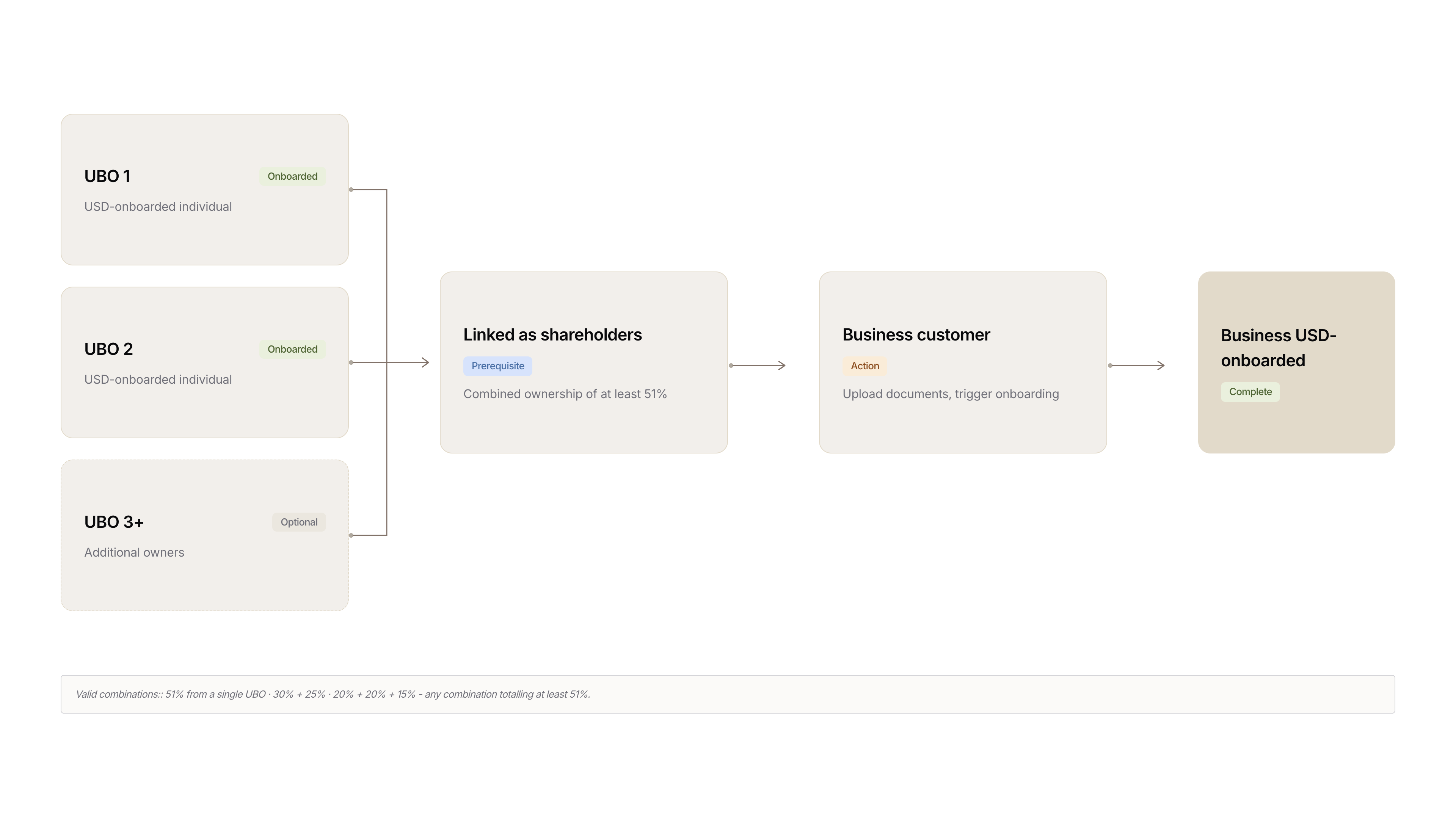
Prerequisite: Before onboarding a business to USD, all beneficial owners holding a combined ownership of at least 51% must first be successfully onboarded to USD as Individual Customers.
- Navigate to Customers and select an existing business, or create a new one via Create → Business customer.
- Ensure the customer is in an Approved or Auto-approved state.
- Under Onboard currencies, select USD.
- Complete all USD-specific customer information.
- Link USD-onboarded shareholders to the business until their combined ownership is at least 51%.
- Upload the required supporting documents. See Business Customer Onboarding Requirements.
- Submit the onboarding request.
The customer is onboarded to USD and can have USD accounts created.
EUR
Individual Customer
No action is required.
Once the customer reaches an Approved or Auto-approved status, EUR onboarding is completed automatically.
Business Customer
Prerequisite: Before onboarding a business to EUR, at least one individual shareholder must be created and approved in Lorum as an Individual Customer.
- Navigate to Customers and select an existing business, or create a new one via Create → Business customer.
- Ensure the business customer is in an Approved or Auto-approved state.
- Under Onboard currencies, select EUR.
- Link at least one shareholder to the business profile.
- Submit the onboarding request.
The customer is onboarded to EUR and can have EUR accounts created.
GBP
Individual Customer
No action is required.
Once the customer reaches an Approved or Auto-approved status, GBP onboarding is completed automatically.
Business Customer
Prerequisite: Before onboarding a business to GBP, at least one individual shareholder must be created and approved in Lorum as an Individual Customer.
- Navigate to Customers and select an existing business, or create a new one via Create → Business customer.
- Ensure the business customer is in an Approved or Auto-approved state.
- Under Onboard currencies, select GBP.
- Link at least one shareholder to the business profile.
- Submit the onboarding request.
The customer is onboarded to GBP and can have GBP accounts created.
Updated 7 days ago